Hopefully you have already read all of the tricks/tips (there are several articles) regarding my special tricks and tips for old-time radio fans.
Here's another good one:
If you are like me, you have an iPod that holds 250 gigs (actually more like 234 gigs) of stuff. One my 7th generation iPod, I have a few video episodes of Dragnet on there and my entire OTR collection.
Until recently, I never even bothered saving my collection to hard disk. Yes, it does reside on stacks of CDs and DVDs but I was not keen on using 200 gigabytes on the computer to store OTR.
Well with this trick, you can use your iPod to not only play your stuff but to store your stuff. I'm talking about that well-known trick: How to use your iPod as a storage device, either.
Here's what you do: if you have a large iPod (or large enough to carry your entire collection) fill up your iPod.
Now head over and get the tiny program called, "iDump." iDump is a German-made freeware program that will dump the contents to your hard drive, so you never really have to have a backup on your hard drive. (I would advise always keeping your stuff on CD or DVD though, unless you relish the thought of having to download everything again in case something happens.)
There are a couple of things you must know about iDump:
1. Make sure your iPod is plugged into your computer.
2. Close everything down except iTunes. You can leave your resident programs running, though (resident programs are those that run by your clock in the Windows operating system.)
3. Run iDump. (iDump has no installer program, it is what it is.)
4. iDump will take a while to scan your iPod. Up to a hour or more if you have a big iPod.
5. If you run anything at all while it is scanning, it will crash. Trust me. Read this again: if you open anything at all while iDump is running, it will crash. And when it crashes, you will have to start all over and that's a big bummer.
6. After it has finished scanning, you can open up all kinds of windows and run all kinds of things. Now, you can "dump" whatever you need to your hard drive. Be sure you pick the second tab to tell the iDump where to dump the stuff. "X" the boxes of the files you want dumped.
iDump is one of the nicest little free programs you will ever find. It's not very stable as I mentioned but it is free and it does work if you follow my guidelines. And it can save you 230+ gigabytes of hard drive space!
©Jimbo 2010/2011

Showing posts with label Tips for managing your iPod. Show all posts
Showing posts with label Tips for managing your iPod. Show all posts
Thursday, April 14, 2011

Wednesday, March 2, 2011
A couple more iPod tips
Earlier I showed you some iPod and iTunes tips and today I thought I would show you a couple more.
After you read them, you might think I am cRaZy but trust me, these are good tips.
 Tip: Set your backlight setting to "0." Zero? Yep. You'd be surprised how much light the iPod gives out at "zero strength." It will save your battery life. Try it for a day. If you don't like it - can't see, I dare you to come back here and tell me.
Tip: Get rid of all of the artwork on your iPod. Pretty? Yes... but removing the artwork could save a few hundred megabytes of space. The more room the iPod has, the better off it is.
Exactly how long do you actually admire the artwork on your iPod, anyway? It's just wasted space, in my opinion.
After you read them, you might think I am cRaZy but trust me, these are good tips.
Tip: Set your backlight setting to "0." Zero? Yep. You'd be surprised how much light the iPod gives out at "zero strength." It will save your battery life. Try it for a day. If you don't like it - can't see, I dare you to come back here and tell me.Tip: Get rid of all of the artwork on your iPod. Pretty? Yes... but removing the artwork could save a few hundred megabytes of space. The more room the iPod has, the better off it is.
Exactly how long do you actually admire the artwork on your iPod, anyway? It's just wasted space, in my opinion.
Friday, February 18, 2011
iPod tip #3,: How to fix a sluggish iPod
There are a lot of things that will make your iPod run sluggishly. One thing is that it may be too full. Try to leave as much room on there as you can.
Cold weather will also slow down your iPod.
But for a pretty good cure all, try the following trick:

It will take a couple of minutes for your iPod to reset and you will see a grey screen with the Apple logo on it. Once it comes back to life, you're in business!
Cold weather will also slow down your iPod.
But for a pretty good cure all, try the following trick:

It will take a couple of minutes for your iPod to reset and you will see a grey screen with the Apple logo on it. Once it comes back to life, you're in business!
Tuesday, January 11, 2011
Tips for managing your OTR using iTunes: Part 2
ADD SHOW SYNOPSIS TO ANY/EVERY EPISODE
Find a show synopsis or a review (or whatever text you want.)
Using your mouse, copy that information. There is a size limit - but I don't know exactly what the size is. You can copy quite a bit though. There should more than enough space for any episode synopsis.
Highlight the file you want to add the synopsis to.
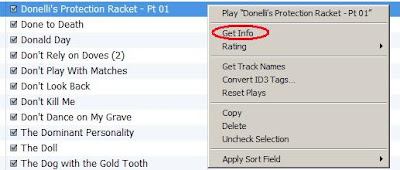
Right click (mouse) on that file and choose "Get Info."

This is simple. Maybe you never thought about doing it.
Find a show synopsis or a review (or whatever text you want.)
Using your mouse, copy that information. There is a size limit - but I don't know exactly what the size is. You can copy quite a bit though. There should more than enough space for any episode synopsis.
Highlight the file you want to add the synopsis to.
Right click (mouse) on that file and choose "Get Info."

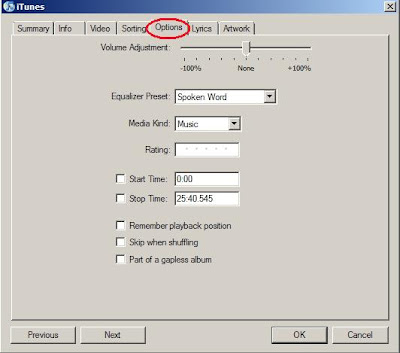
That will take you to this window (below) where you can find the tab called "Lyrics." Choose Lyrics and paste what you copied earlier. Click OK and you're all done.

BETTER SOUND
No matter if you are using earplugs, headphones or listening though speakers, you can get the best sound available if choose "Spoken Word" under the "Options." tab.
You get to this tab the same way you got to the Lyrics tab (above) so follow those instructions but just choose Options rather than Lyrics this time.

Monday, January 10, 2011
Tips for managing your OTR using iTunes: Part 1
These tips assume you have an iPod and you use iTunes and at least somewhat you what you doing.
Today's tip: Having an "OTR Smart" iPod.
Imagine the following scenario: It's Monday morning. You are going to drive to work. On the way to work, you want to listen to the 21st Precinct episode, "540407 039 The Collar."
You have never heard this episode before, so you drive along, la-ti-da, enjoying the episode.
Imagine now, it's Tuesday and you need to drive to work. "That episode of the 21st Precinct was great yesterday", you say to yourself, "I think I will listen to another episode of the 21st Precinct today."
So, you get in the car and turn on the old iPod and you look at your playlist. You avoid "540407 039 The Collar" because you heard that yesterday. Today, you choose "540414 040 The Brother."
Three weeks from now, you get into your car and want to listen to the 21st Precinct on the way to work again.
"Now let's see...", you squint your eyes and say to yourself, "Which episode did I hear last time I listened to 21st Precinct?"
Okay back to today. Here's where I can help you. Let me explain to you how I have my iPod/iTunes set up so that you have playlists for every radio series on your iPod and when you finish listening to a show, it's not on the playlist anymore (but still on your iPod and still easy to be found.)
SMART PLAYLISTS
The first thing we'll do is make "Smart Playlists." Under your iPod symbol, left click with your mouse on "Music."

Then, make sure all of your files for 21st Precinct are unrated. If they are rated, go and unrate them in iTunes.
Then follow the graphic (above) and set it exactly the way I have done. This will play the 21st Precinct in order by name.
Every time you listen to a show, pick up your iPod - and as the show is winding down, RATE the program by giving it 5 stars. When you do this, the Smart Playlist recognizes that and will no longer have that song in that playlist. Instead, it will remain in it's "home" under "Artists" - "21st Precinct."
As you can see, I have an iPod full of artists and each artist has it's own genre and each genre has it's own Smart Playlist:

THE BEST TIP EVER - I MEAN IT - EVER!
Here's a really, really big tip that I have never found anywhere and it will solve a lot of problems:
Do you know how sometimes you want your programs played in a particular order (let's say: "by date" for example) and the stupid iPod decides it will instead avoid doing what you have told it to do and instead plays them "by name." ARRRGH! You scream! (As I do.) STUPID IPOD. So you go and set it again. It does it again. ARRRGH!
Here's how to fix that! (Yes, you can really solve that problem and it's quite easy!):
Set it up again in the order you want. (I know you're tired of doing it, but this will be the last time you will have to do it!) Once you have it the way you want it, go over to the left where your playlist is and right click (mouse) on the highlighted playlist you are trying to make obey you:

HALLELUJAH!
Coming soon: another cool tip.
Today's tip: Having an "OTR Smart" iPod.
Imagine the following scenario: It's Monday morning. You are going to drive to work. On the way to work, you want to listen to the 21st Precinct episode, "540407 039 The Collar."
You have never heard this episode before, so you drive along, la-ti-da, enjoying the episode.
Imagine now, it's Tuesday and you need to drive to work. "That episode of the 21st Precinct was great yesterday", you say to yourself, "I think I will listen to another episode of the 21st Precinct today."
So, you get in the car and turn on the old iPod and you look at your playlist. You avoid "540407 039 The Collar" because you heard that yesterday. Today, you choose "540414 040 The Brother."
Three weeks from now, you get into your car and want to listen to the 21st Precinct on the way to work again.
"Now let's see...", you squint your eyes and say to yourself, "Which episode did I hear last time I listened to 21st Precinct?"
Okay back to today. Here's where I can help you. Let me explain to you how I have my iPod/iTunes set up so that you have playlists for every radio series on your iPod and when you finish listening to a show, it's not on the playlist anymore (but still on your iPod and still easy to be found.)
SMART PLAYLISTS
The first thing we'll do is make "Smart Playlists." Under your iPod symbol, left click with your mouse on "Music."

Music should be highlighted. Once it is, go to the upper left-hand corner of your screen and choose "File" with your mouse. Now choose "New Smart Playlist..."

There are a bazillion different options for setting up your playlists. You do as you wish but what I have done is make each series it's own GENRE. For instance 21st Precinct's genre is listed as "21st precinct" - not "spoken word" or "otr" or "old time radio".
Then, make sure all of your files for 21st Precinct are unrated. If they are rated, go and unrate them in iTunes.
Then follow the graphic (above) and set it exactly the way I have done. This will play the 21st Precinct in order by name.
Every time you listen to a show, pick up your iPod - and as the show is winding down, RATE the program by giving it 5 stars. When you do this, the Smart Playlist recognizes that and will no longer have that song in that playlist. Instead, it will remain in it's "home" under "Artists" - "21st Precinct."
As you can see, I have an iPod full of artists and each artist has it's own genre and each genre has it's own Smart Playlist:

THE BEST TIP EVER - I MEAN IT - EVER!
Here's a really, really big tip that I have never found anywhere and it will solve a lot of problems:
Do you know how sometimes you want your programs played in a particular order (let's say: "by date" for example) and the stupid iPod decides it will instead avoid doing what you have told it to do and instead plays them "by name." ARRRGH! You scream! (As I do.) STUPID IPOD. So you go and set it again. It does it again. ARRRGH!
Here's how to fix that! (Yes, you can really solve that problem and it's quite easy!):
Set it up again in the order you want. (I know you're tired of doing it, but this will be the last time you will have to do it!) Once you have it the way you want it, go over to the left where your playlist is and right click (mouse) on the highlighted playlist you are trying to make obey you:
Choose "Copy to Play Order." From now on, your iPod will do what you have commanded it to do, IN THAT PLAYLIST. You will have to do this to every playlist but you shouldn't have anymore trouble with the iPod trying to take over and fulfill it's own evil desires.
HALLELUJAH!
Coming soon: another cool tip.
Subscribe to:
Posts (Atom)
